How to Give Claude Code Screen Context and Voice
Circle anything on your screen, say what you want, and a Claude Code run starts in your project. The full setup, the costs, and the free alternatives.
From the videoUpload package: Claude Code Can Finally See Your Screen (Full Setup)
Most people fix a visual bug in Claude Code the slow way.
They screenshot it. Paste it in. Write a paragraph about which button they meant.
Then it changes the wrong thing, because Claude Code cannot see your screen.
The fix I settled on after two weeks is VoiceOS: hold a hotkey, circle the thing on screen, say what you want, and a Claude Code run starts in your project. Below is the full setup, the pricing, the three places it breaks, and the free alternatives.
This is sponsored by VoiceOS. They gave me full access and told me to be as honest as I wanted, so the breaking points below are real ones.
What Claude Code can already reach, and what it cannot
Claude Code is not trapped in your project folder. With connectors, which are MCP servers, it reaches your inbox, your calendar, your Notion and your database. Reach is solved.
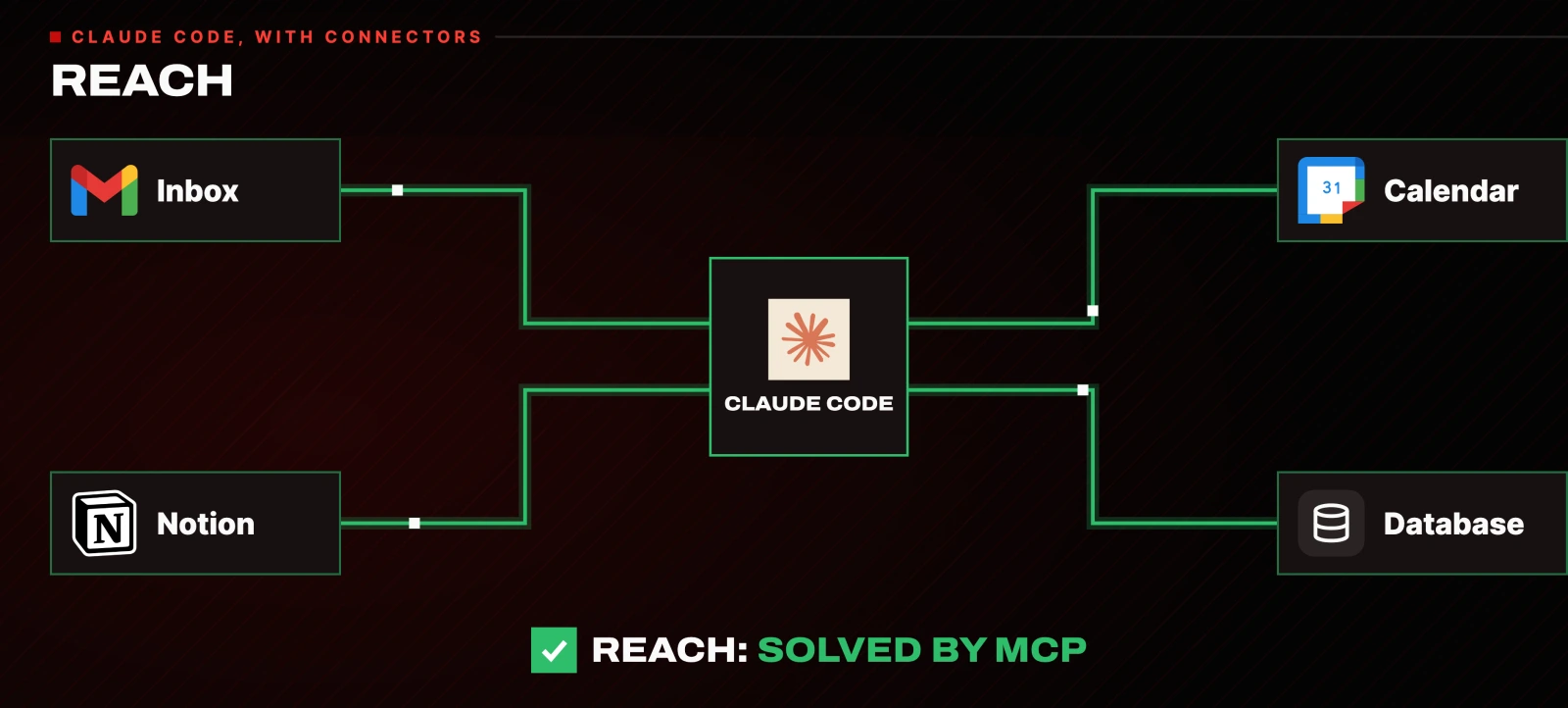
Two things are missing, and they are both small and constant.
It has no eyes. It cannot see what is on your screen right now, so anything visual has to be translated into words. Words are a terrible format for "that box, the third one, no, the text under that".
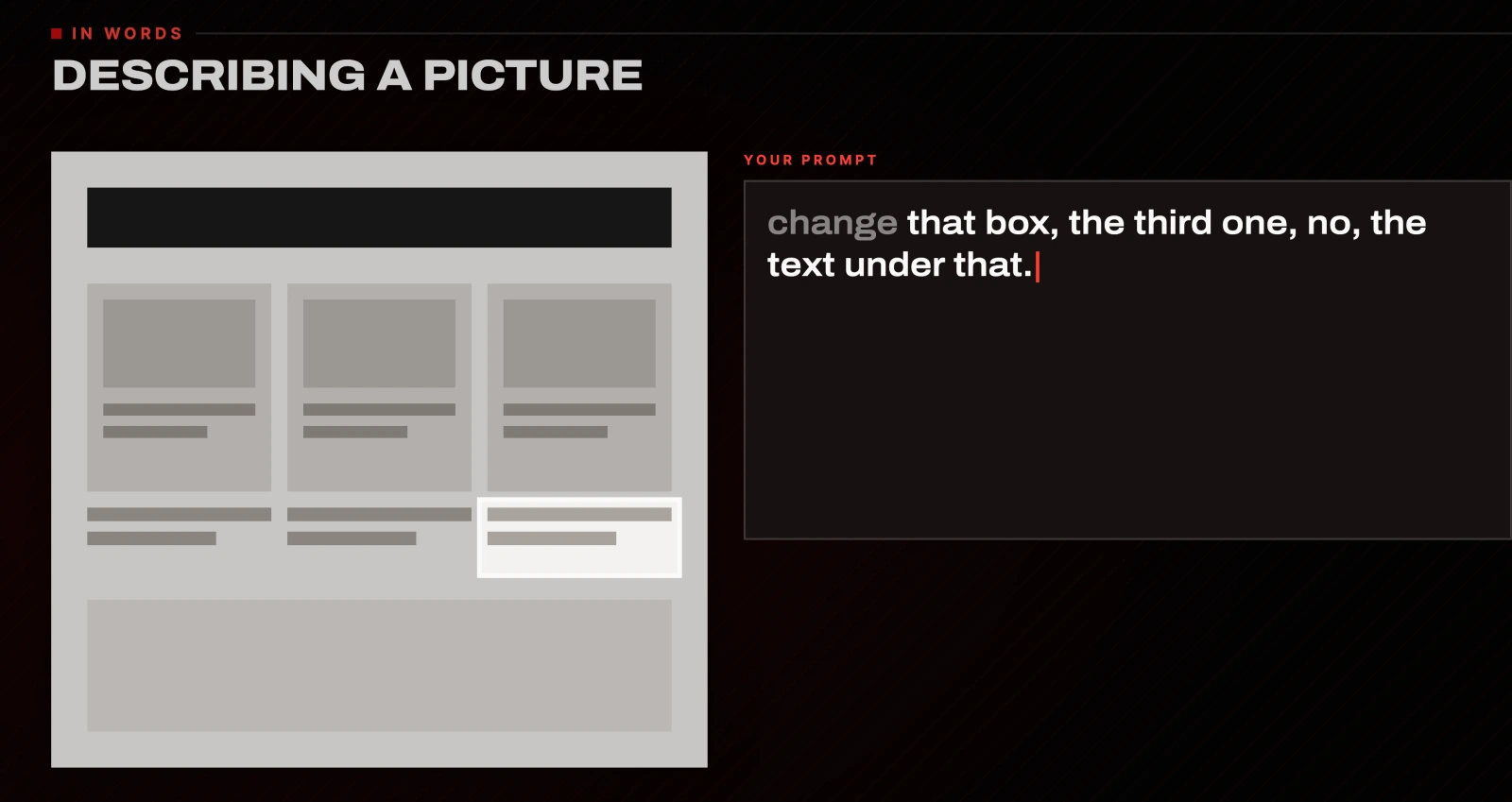
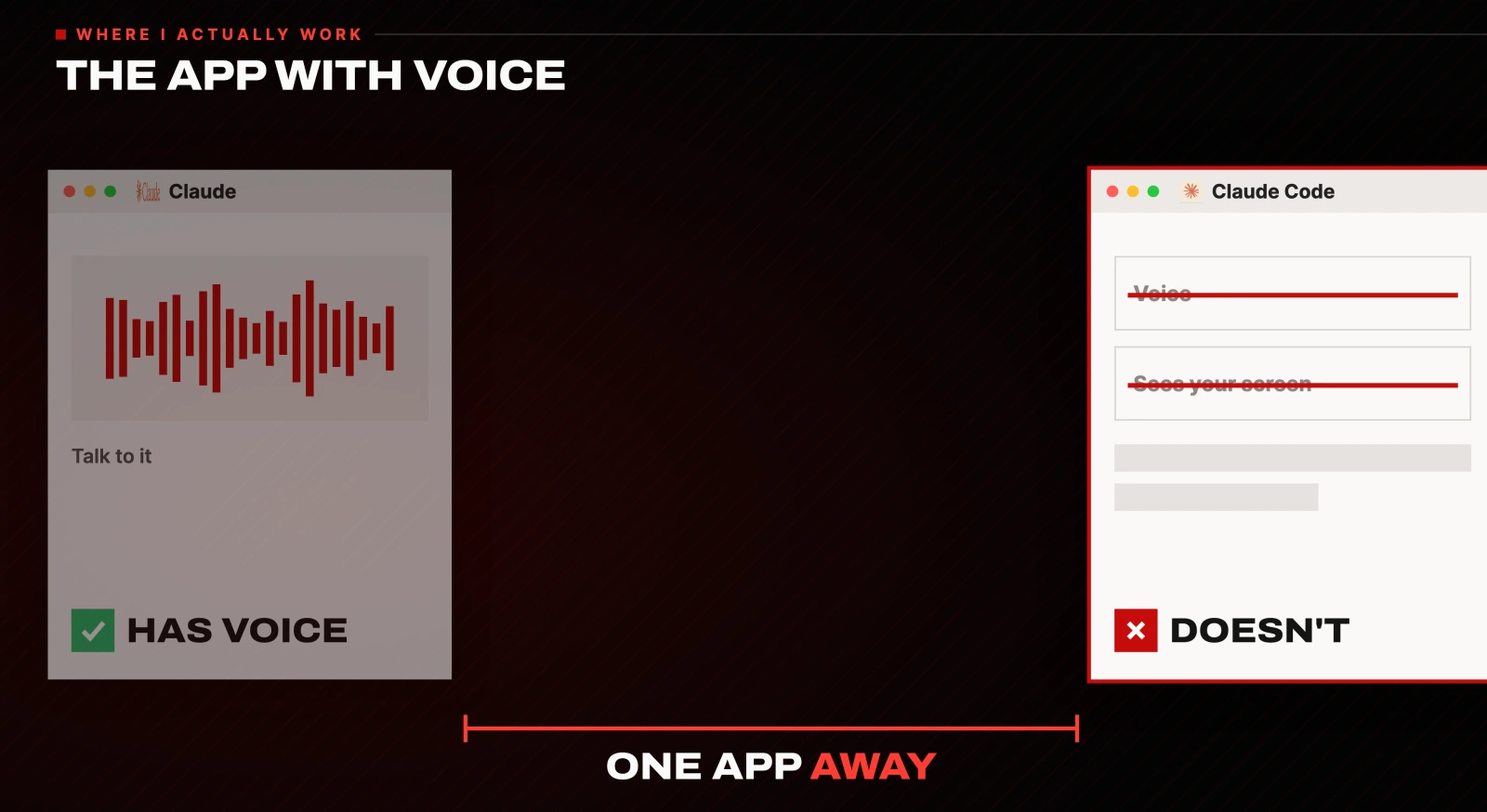
It has no doorbell. You can summon the regular Claude app from anywhere, but not the coding agent. To reach Claude Code you open the desktop app, go to Claude Code, get into the right folder, and then ask. The voice interface I wanted was sitting one app away from the thing I actually work in.
Circle something on your screen and talk to Claude Code
This is the feature the whole setup is for. You hold the hotkey, and while you are talking you draw a rough loop around anything on screen. That circle becomes the screenshot and the context the run receives.
So instead of describing which element you mean, you circle it and say:
Hey Claude, could you change this red text to yellow for me?It captures the region, sends it with your words, opens a Claude Code instance in the project, and starts work. The old loop was five steps. This one is three.
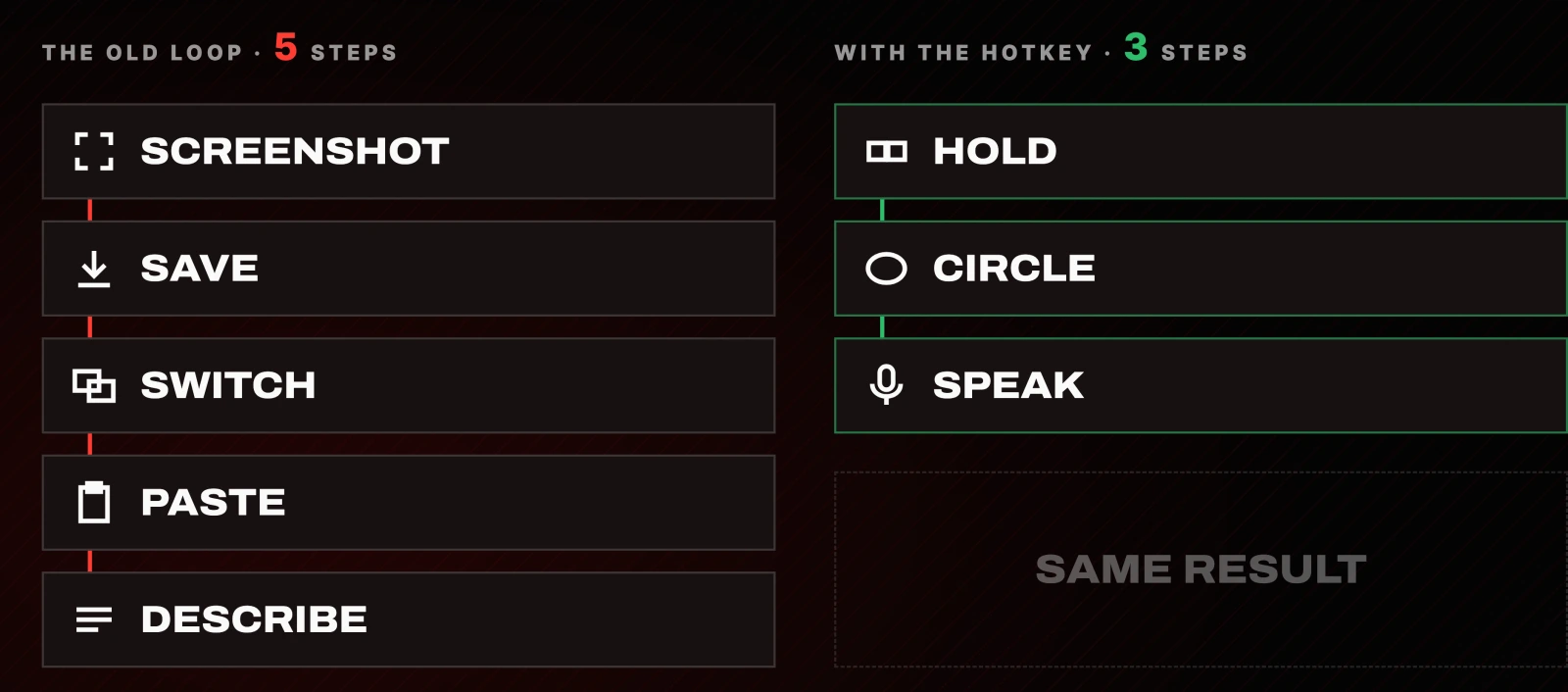
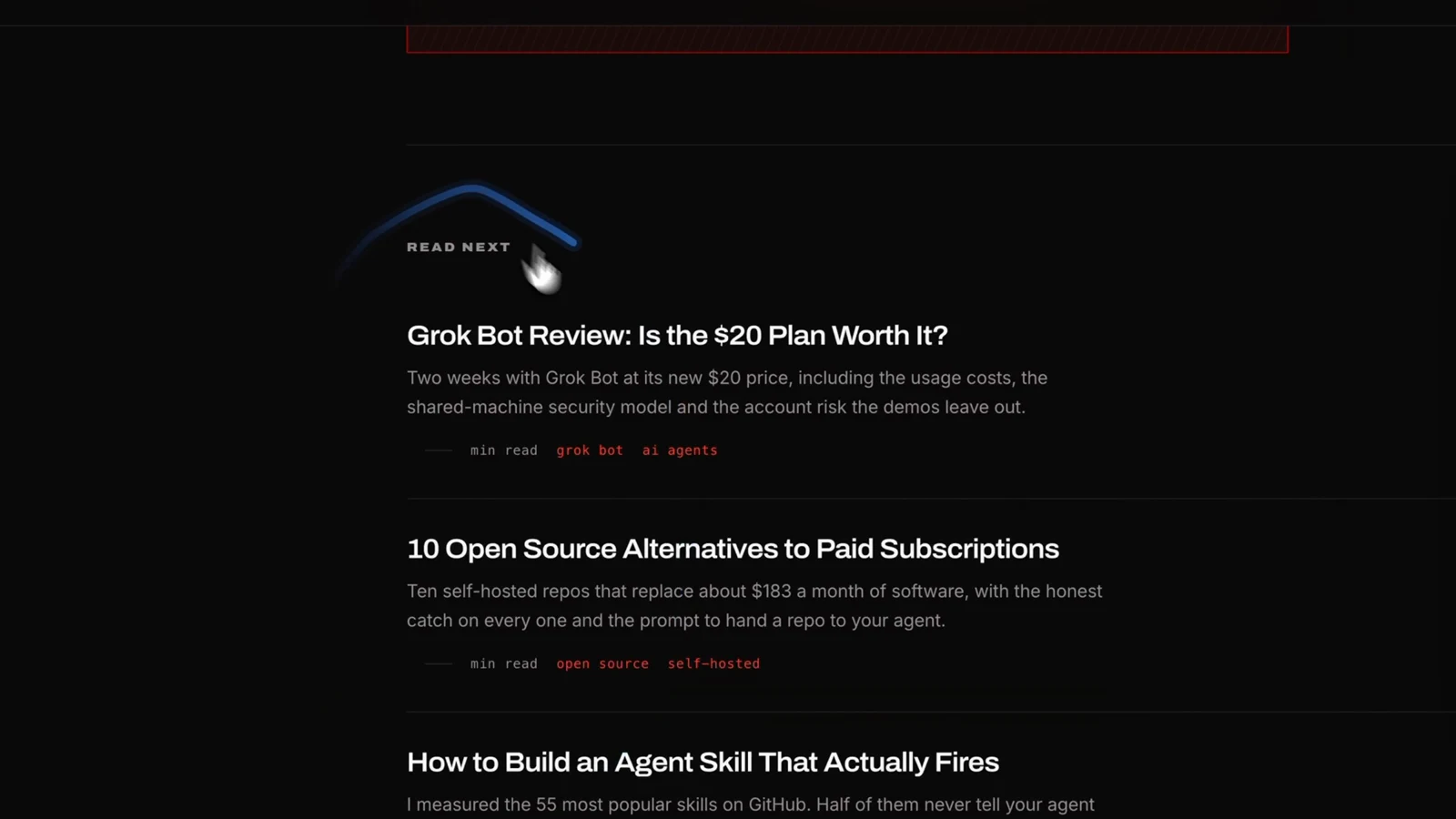
It works over whatever you happen to be looking at, which is the point. When I spotted that my site was not showing thumbnails in the "read next" list, I circled the list and said:
Hey Claude, could we add thumbnails next to each title here on my website?Set up VoiceOS in three minutes
- Download it from voiceos.com for your operating system, open it, make an account. That is the whole install.
- Open the Apps tab. Every connector lives there, and you turn them on one at a time. Each one opens an OAuth window, you approve it, it is connected.
- Turn on Claude Code, then click into it and connect that too.
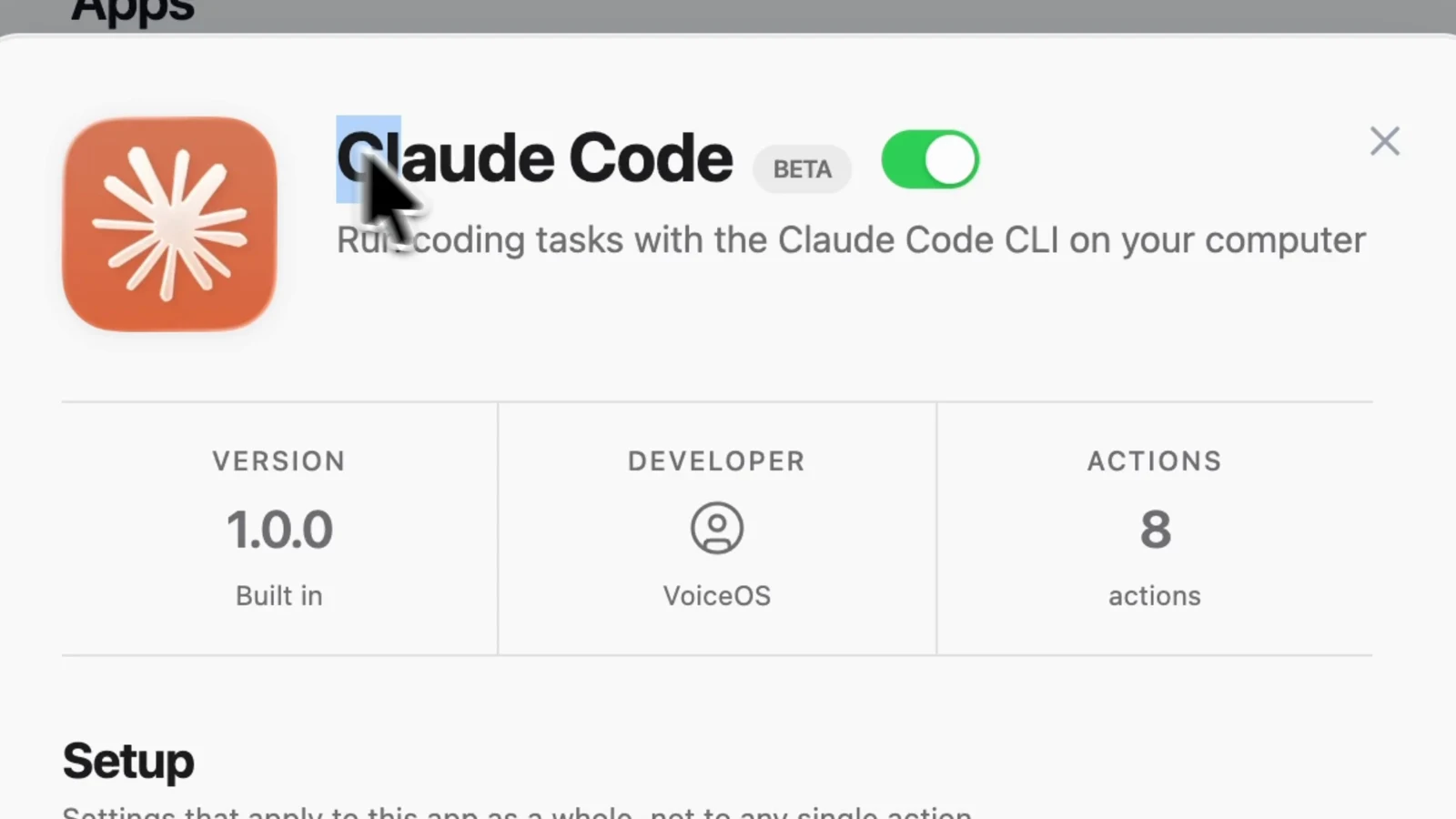
The Claude Code app card is where you set whether runs can write without asking each time, and it lists the actions it can take.
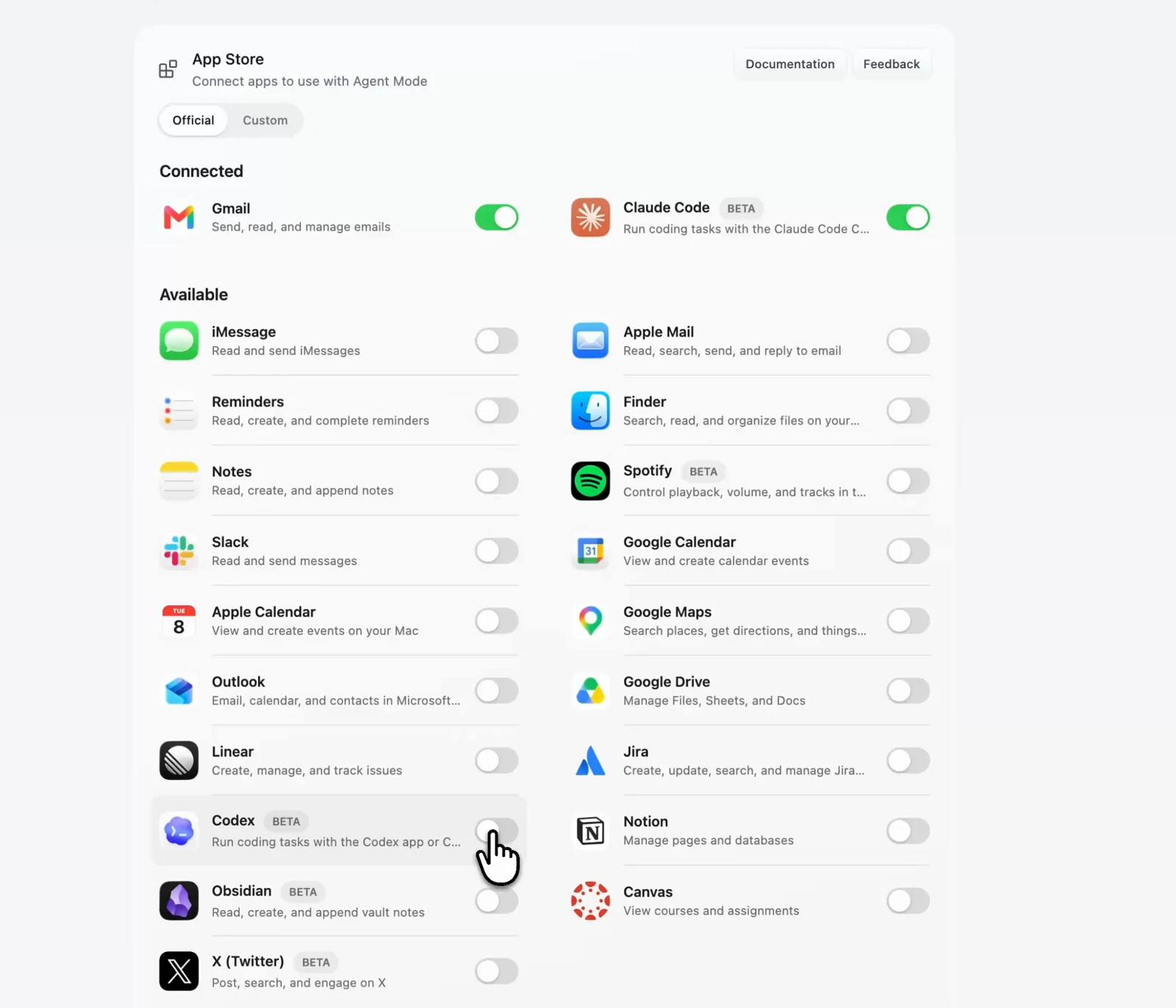
The built-in list covers the obvious apps: Mail, Slack, Notion, Drive, Calendar, Linear, Jira, Finder. If your workflow lives somewhere niche, you build an integration yourself, which is further down.
Stop opening the terminal for small jobs
The hotkey works everywhere, and the run does not fire and forget. A panel on the left holds every run. A panel at the top shows the current one: which model it is on, the effort level, and a stop button.
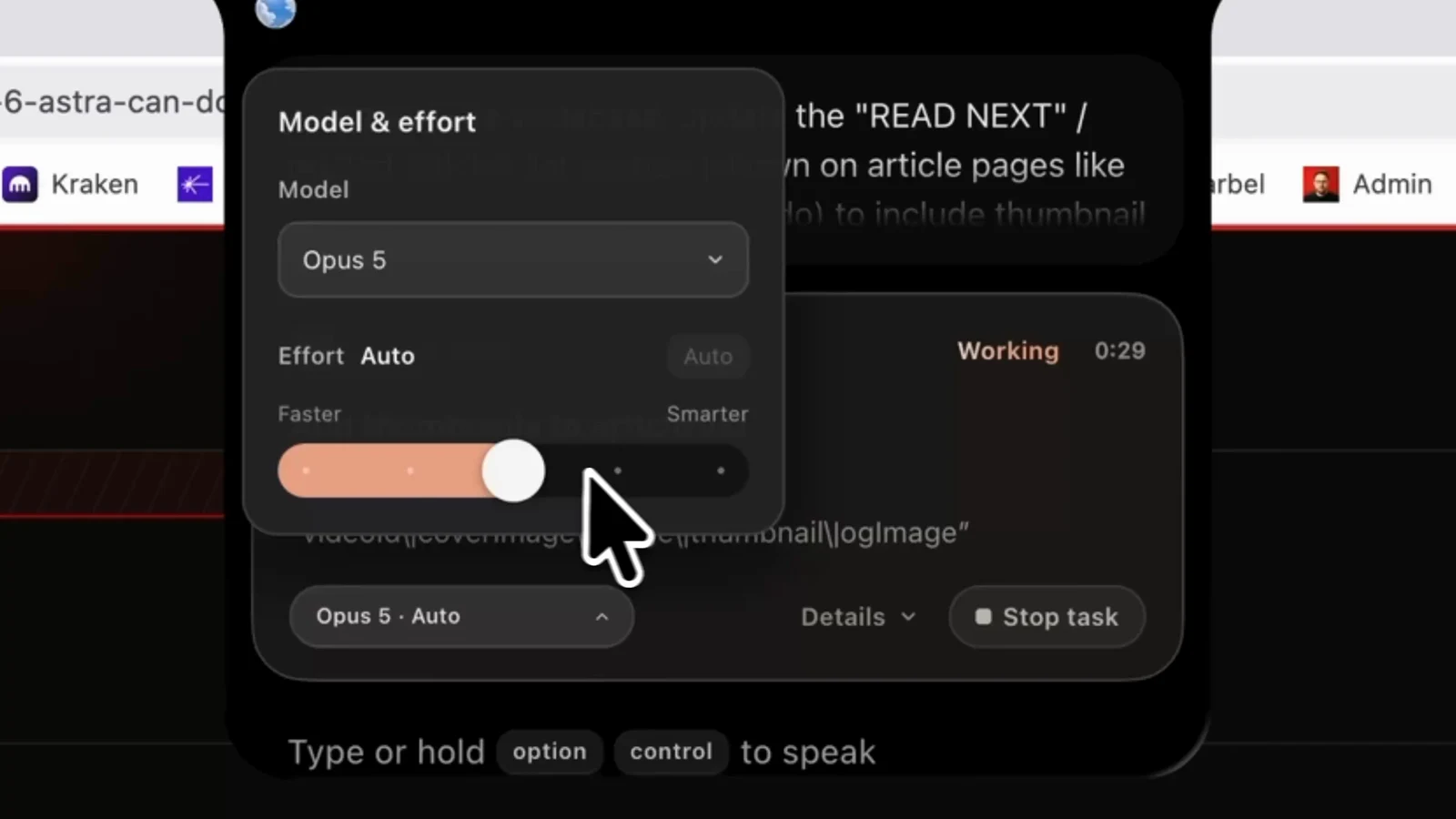
You can hold the hotkey again mid-run to change your mind, and it passes that through to the running agent. Mine has taken "actually, never mind, I wanted a specific thumbnail per video instead" while the first version was still being written.
That is the shift worth naming. Claude Code stops being a place you go and sit, and becomes something you throw work at while you carry on doing something else.
It also reaches past coding. While editing a video I can ask for an email draft, or set a task without leaving the timeline:
Hey, could you set a task for me on Notion to send over that email?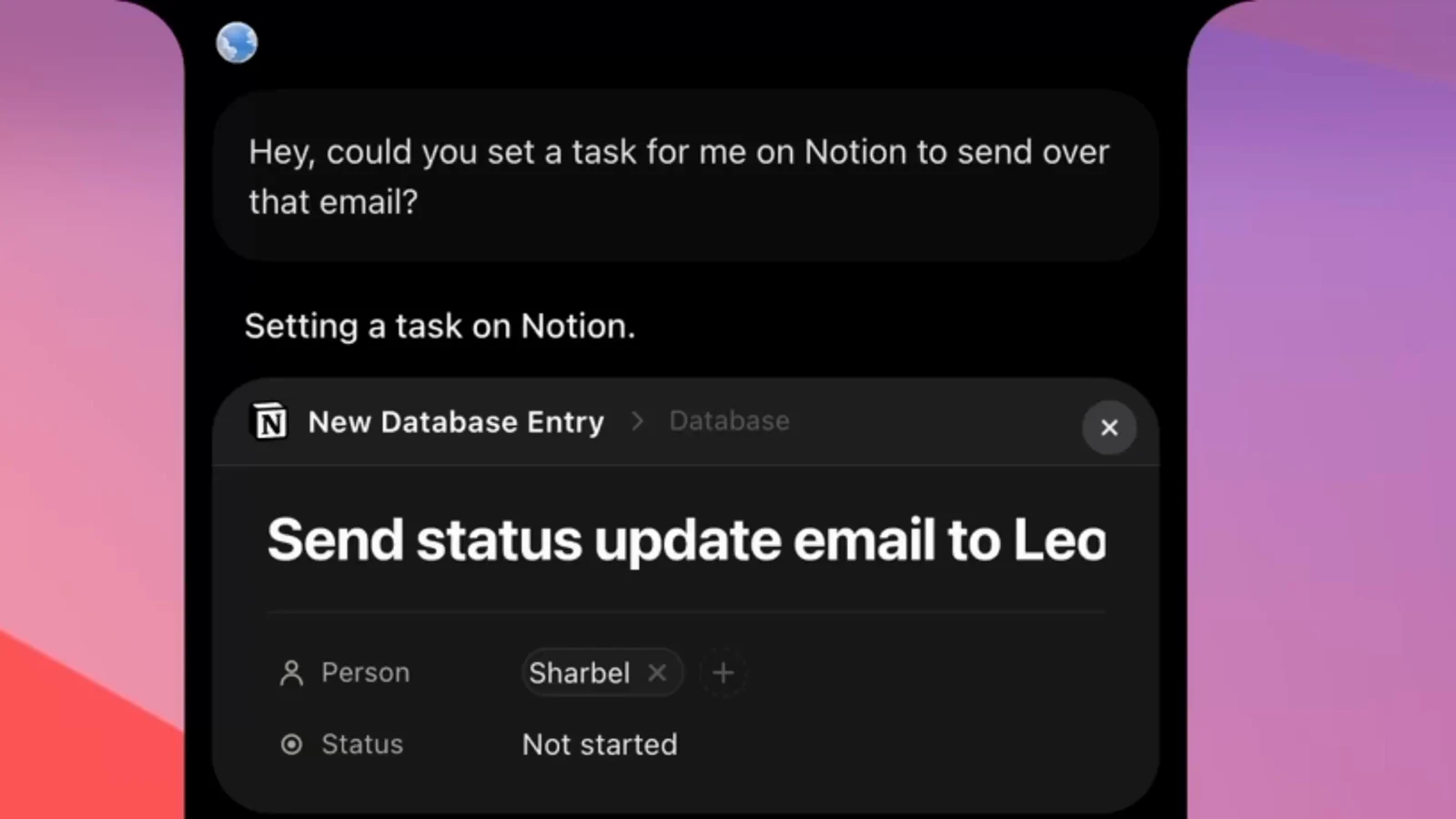
Build a custom integration for a tool that is not in the list
If the tool you use is not a connector, you create one. I use my own agent, Hermes, which was never going to be in anybody's app store, so I went to custom integrations, clicked create, and described what I wanted:
Hey, I want to create a Hermes integration.Anything with a usable API or MCP path can be reached this way, which means the connector list stops being a hard limit. Once it was built, this works from any window:
Hermes, what tasks did you complete today?It answers in the panel, so I no longer open Telegram or the Hermes desktop app just to ask.
Be realistic about effort. A calculator integration was genuinely one shot. The Hermes one took some back and forth, because that agent runs on a separate machine and I wanted to drive it from this one. Budget an hour for anything with an unusual path, minutes for anything ordinary.
The Hermes integration I built is free here, no email required: api.voiceos.com/integration-share/LsO0wdYURkax/page.
Where it breaks
Three real limits after two weeks of daily use.
It is cloud only. There is no local inference option. If you have built your setup around running models locally, this one will bother you, and no setting fixes it.
The connector list is thin outside the obvious apps. It is good on mail, chat, docs and calendars, and sparse past that. In practice I needed exactly one more, and building it myself took under an hour, but that is work you should expect rather than discover.
It mishears technical words. It heard "Hermes" as "her mess" often enough to matter. The fix takes a minute: open the app, go to Dictation, and add the words you say all day so it learns them. Worth seeding it before you start, with whatever your stack is called:
Hermes
Claude Code
MCP
Supabase
Vercel
Notion
What VoiceOS costs
$30 a month monthly, or $12 a month if you pay yearly, after a 7 day free trial. A card is required for the trial and you can cancel any time before it ends.
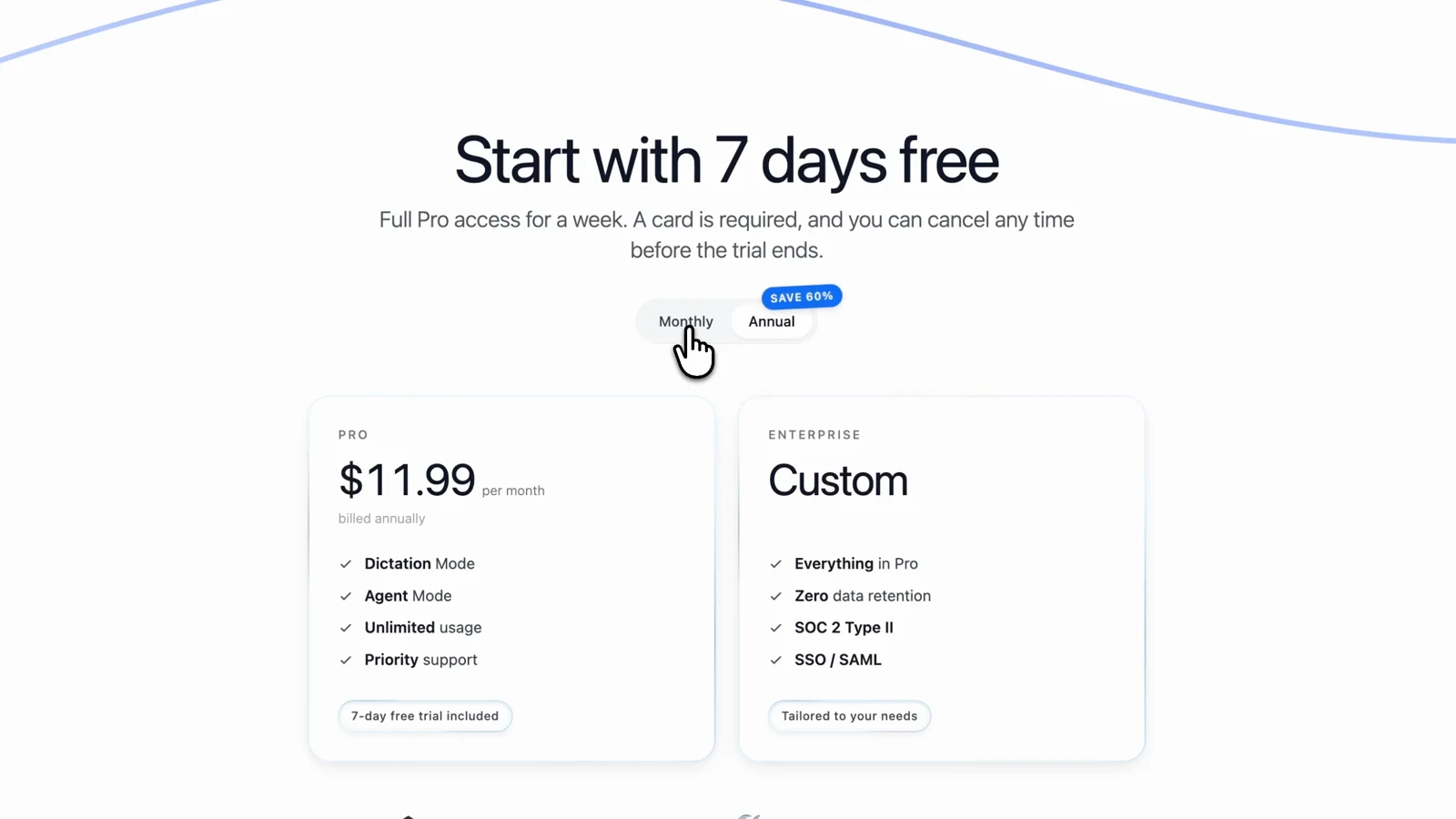
If you cancel after the trial you are not locked out. You drop to 100 dictation sessions and 25 agent sessions a week, which is about three agent runs a day. That is enough to keep the habit, and not enough to work the way this article describes.
The free alternatives, and what each one cannot do
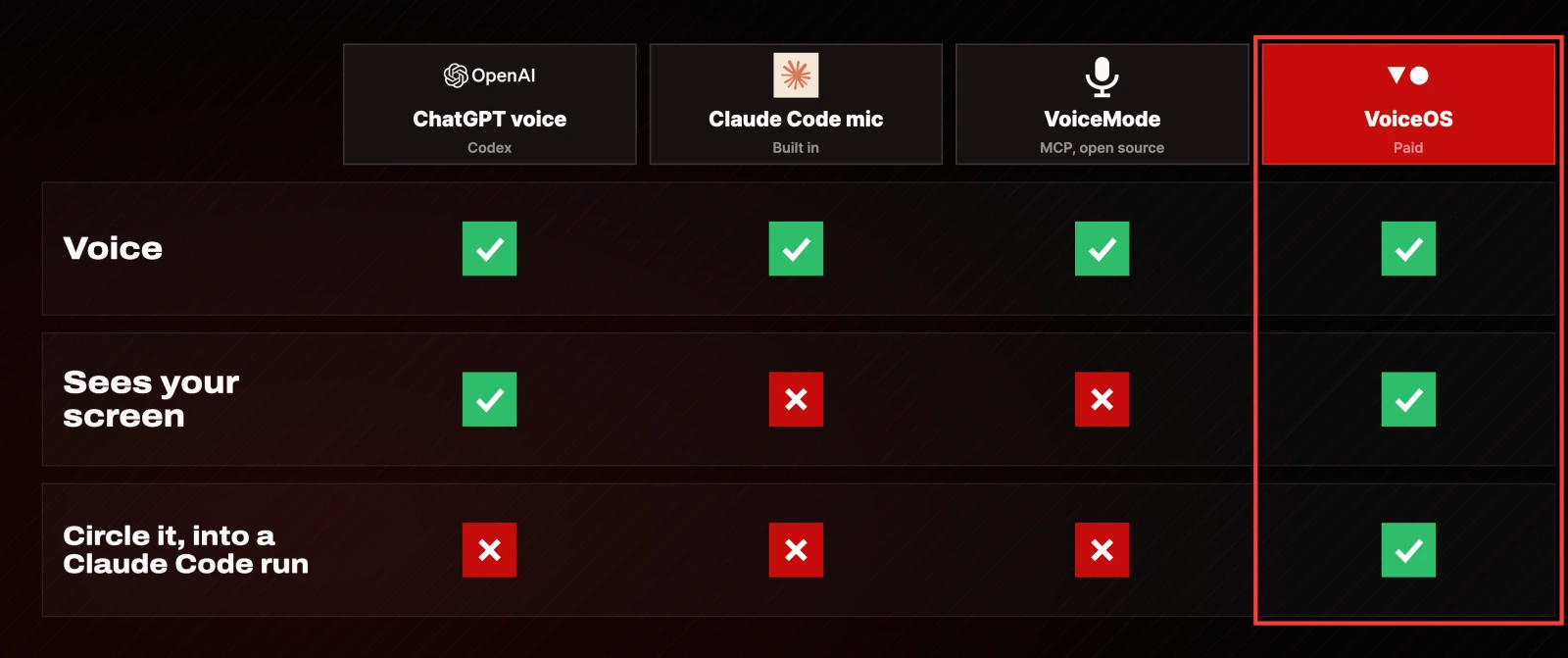
ChatGPT's desktop app with voice, including Codex. Enable the voice chat hotkey in settings, and turn on screen context so it can see the foreground app while you talk to it.
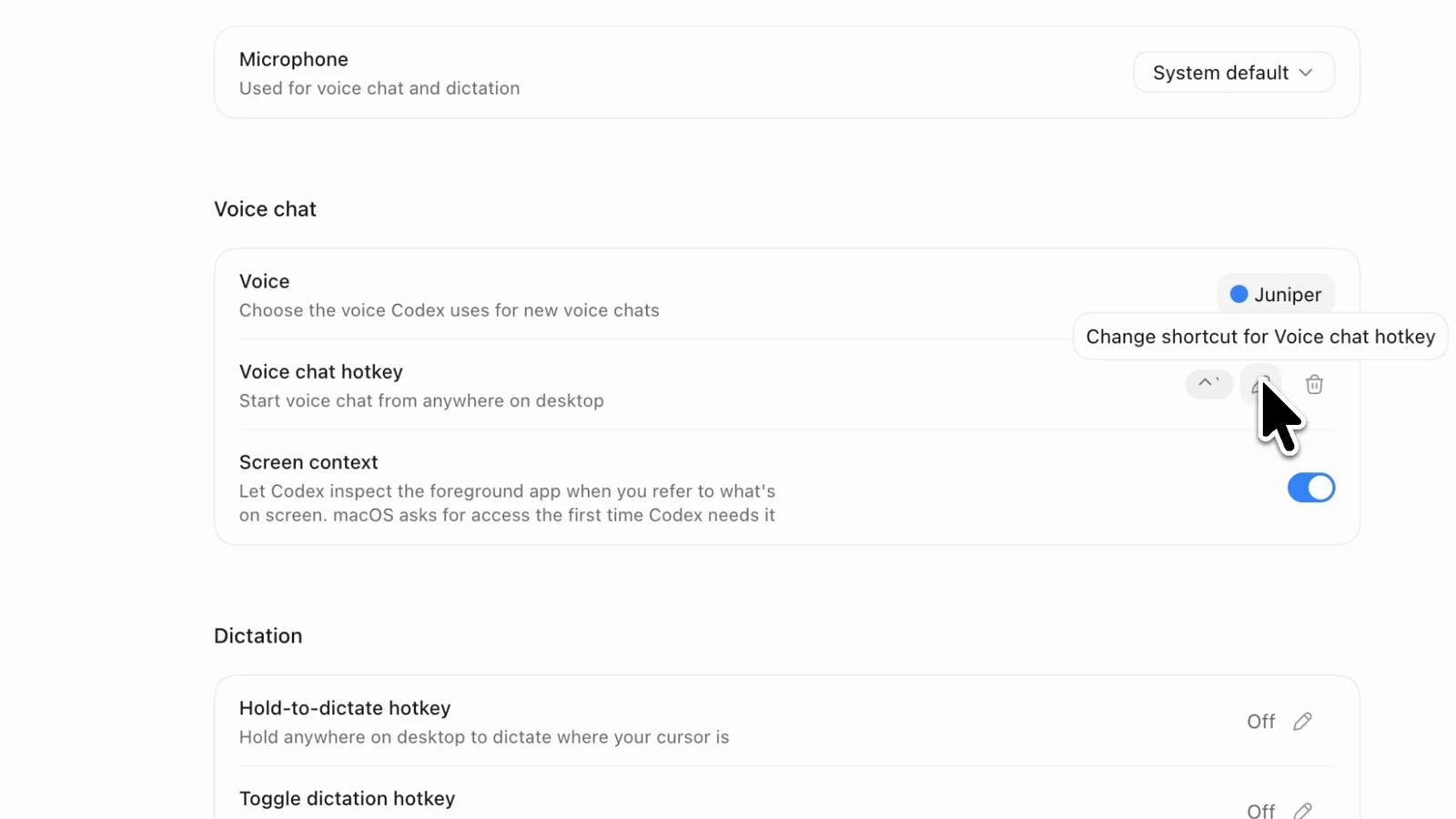
It sees your screen, but you cannot point at one specific thing on it, and it does not help at all if Claude Code is your coding agent.
The microphone already inside Claude Code. Click the mic and talk. Free, nothing to install. But you have to be inside Claude Code already, you cannot trigger it from another window, and it cannot see your screen unless you screenshot and paste like before.
VoiceMode. An MIT licensed MCP server that gives Claude Code voice conversations, and it can run speech to text locally, so your audio never leaves your machine.
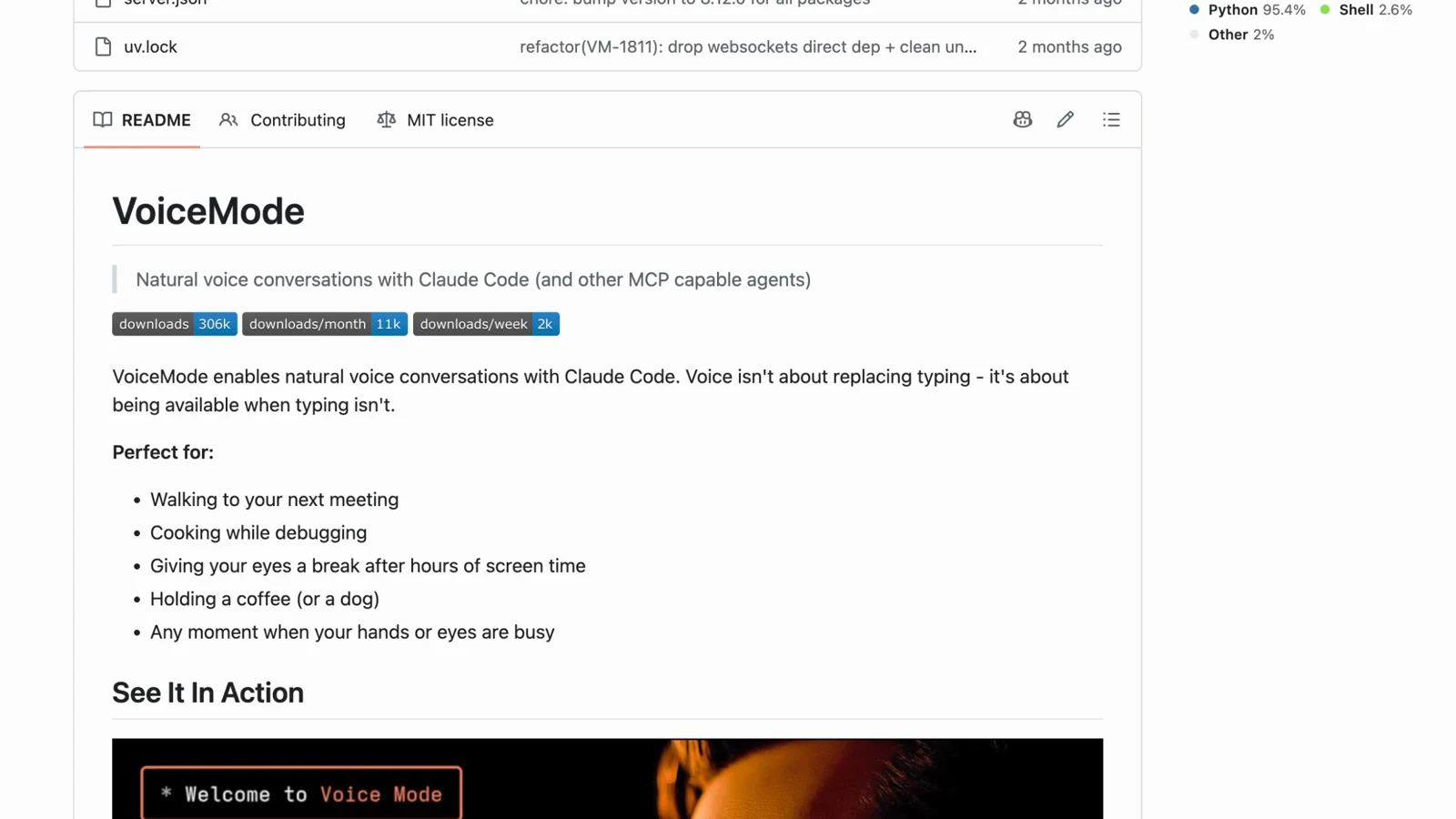
Install it as a Claude Code plugin:
# Add the VoiceMode marketplace
claude plugin marketplace add mbailey/voicemode

# Install VoiceMode plugin
claude plugin install voicemode@voicemode

# Install dependencies (CLI, local voice services)
/voicemode:install

# Start talking
/voicemode:converse
It is voice only. There is no screen watching and no screen sharing, and setup takes more work than the others.
Here is the honest comparison. The free options are strong on voice. What none of them does is hand one specific piece of your screen to a Claude Code run that is already working inside your project.
Is it worth paying for
After two weeks, I reach for it constantly, and that is the only measure that matters to me. The price will not suit everyone. At the scale I run my business it is a rounding error against the time it returns, and I have started using it well beyond Claude Code: emails while editing, Notion tasks during meetings, dictation on whatever tab I am on.
If you are in Claude Code every day and a lot of what you do is visual, take the trial and test it on your own work. If you mostly write code from a spec, in one window, with no visual back and forth, the free microphone inside Claude Code is probably all you need.
Resources
- VoiceOS, 7 day free trial, then $30 monthly or $12 a month yearly
- My Hermes integration for VoiceOS, free
- Claude Code and its docs
- VoiceMode, free and MIT licensed
- ChatGPT desktop and Codex
- Model Context Protocol, what connectors are built on
What to do next
Start the trial, connect Claude Code in the Apps tab, and add your stack's words to the dictation list before you do anything else. Then use it once for the thing that made you read this: find something wrong on a page, hold the hotkey, circle it, and say what you want changed. If that one loop feels better than screenshotting, the rest of the setup is worth your afternoon.
Questions
- Can Claude Code see my screen?
- Not on its own. Claude Code reads your files and can reach connected apps through MCP, but it has no view of what is on your display. You either paste a screenshot into the chat, or add a tool like VoiceOS that captures the region you circle and sends it with your prompt.
- Is there a free way to talk to Claude Code?
- Yes. Claude Code has a microphone button built in, which costs nothing but only works while you are already inside it. VoiceMode is a free MIT licensed MCP server that adds voice conversations and can run speech to text locally, but it cannot see or share your screen.
- How much does VoiceOS cost?
- It is $30 a month paid monthly, or $12 a month paid yearly, after a 7 day free trial that requires a card. If you cancel after the trial you keep a free tier of 100 dictation sessions and 25 agent sessions a week, which works out at about three agent runs a day.
- What if the app I use is not in the connector list?
- You build an integration yourself. In custom integrations you describe what you want in a sentence and it builds it, which works for anything with a usable API or MCP path. Simple ones are close to one shot; anything running on a different machine took me under an hour of back and forth.

You made it to the end
That is the whole build. Want the next one?
Read next
How to Give Claude Code and Your AI Agent Shared Memory
Connect a builder and an operator to one memory store, so what you tell one the other already knows.
How to Use Claude Code: The Complete Guide
Setup, permission modes, CLAUDE.md, context, cost, skills, hooks and the seven day path to actually learning it.
Claude Code Rate Limit: Why You Hit It and the 7 Fixes That Actually Work
Almost none of your Claude Code usage limit comes from what you type. Here is what actually burns it and how to stop it.